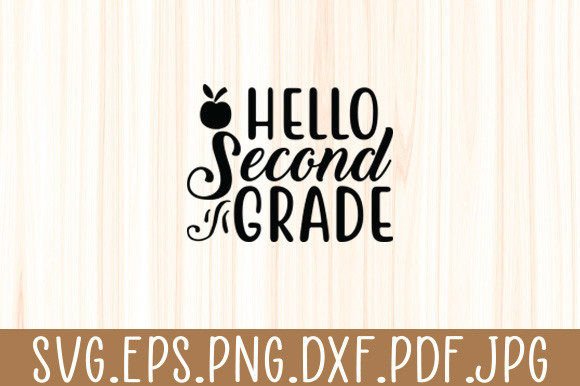
Hello Second Grade Team SVG
Whether you're a teacher prepping for the first day of second grade, a parent organizing a classroom welcome party, or a small business owner creating custom back-to-school merchandise — the Hello Second Grade Team SVG digital file is built to deliver clean, versatile, and classroom-ready design flexibility. It’s not just text on a screen. It’s a ready-to-cut, multi-format resource designed for real-world crafting workflows — from vinyl decals on water bottles to iron-on transfers for team t-shirts.
What You’re Actually Getting (and Why It Matters)
This is an instant-download digital file — no physical item will be shipped. Inside the single ZIP file, you’ll find one organized folder containing five distinct file types: SVG, DXF, EPS, PDF, and PNG/JPG. Each format serves a purpose. SVG works natively with Cricut Design Space. DXF imports cleanly into Silhouette Studio. EPS supports vector editing in Adobe Illustrator. PDF gives crisp print-ready layouts. PNG and JPG offer quick preview and basic overlay use — but remember: they’re raster, not cuttable.
That variety isn’t just convenience — it’s compatibility insurance. If you switch machines, collaborate with someone using different software, or need to resize without pixelation, having all five formats means you won’t hit a dead end mid-project.
A Common Mistake: Assuming “SVG” Means “Works Everywhere”
Many buyers assume that because a listing says “SVG,” it will open and cut flawlessly in their machine’s software. That’s not always true. Some SVG files are poorly structured — with embedded fonts converted to outlines incorrectly, grouped layers that won’t ungroup, or non-uniform stroke weights that confuse cutting algorithms. Others include decorative elements (like subtle textures or drop shadows) that aren’t separated for layering — making them hard to adapt for vinyl weeding or multi-color prints.
The Hello Second Grade Team SVG avoids this by delivering clean, layered vector paths — no hidden raster overlays, no locked groups, and no font dependencies. But even with a well-built file, your results depend on how you use it. For example: scaling an SVG beyond 300% in Cricut Design Space without first ungrouping and checking path integrity can distort spacing between letters — especially in phrases like “Hello Second Grade Team,” where consistent kerning matters for visual balance.
Another Overlooked Detail: Machine + Software Readiness
You don’t need a Cricut Maker to use this file — but you *do* need compatible software that reads SVG or DXF. Silhouette Studio Basic Edition, for instance, doesn’t support SVG import; you’d need Designer Edition or higher. Likewise, older versions of Cricut Design Space may not handle newer SVG syntax smoothly unless updated.
Before downloading, double-check:
- Your cutting machine model (Cricut Explore Air 2? Silhouette Cameo 4? Brother ScanNCut?)
- Your current software version (and whether updates are pending)
- Whether your workflow includes resizing, color layering, or weld/contour edits — and if your software supports those functions
If you’re new to cutting machines, start with the PDF or PNG for mockups before committing vinyl or heat transfer material. Test cuts on scrap paper first — especially when using the DXF or EPS files, which sometimes require manual node adjustments depending on your software’s import logic.
Realistic Use Cases — and Where Things Go Off Track
This file shines in practical applications: classroom door signs, personalized name tags for desks, themed bulletin board accents, or matching parent volunteer badges. Educators often use it for “Team Second Grade” tote bags or laminated welcome cards — pairing the SVG with coordinating colors and simple fonts to reinforce school identity.
But here’s where things get messy: trying to scale the design for large wall decals without adjusting line thickness or stroke settings. A 12-inch version cut on permanent vinyl might look great on a whiteboard — until you realize the inner strokes (like the curve of the “g” or crossbar of the “t”) are too thin and peel at the edges. The fix? Open the SVG in your design software, select individual letters or shapes, and apply a consistent 1–2 pt outline stroke before resizing. That small step adds durability without changing the aesthetic.
What to Check Before You Download — Beyond the File List
Look past the bullet points. Ask yourself:
- Is the file optimized for cutting? Clean SVGs have minimal anchor points, no overlapping paths, and properly joined corners — not just “looks nice” in preview.
- Are layers labeled clearly? If you plan to cut multiple colors (e.g., teal letters + gold outline), you’ll want named layers — not “Layer 1,” “Layer 2.”
- Does the seller specify commercial use rights? This Hello Second Grade Team SVG is licensed for both personal and small business use — meaning you can sell mugs or tote bags made from it, as long as you’re not reselling the file itself.
- Is there a preview showing actual cut lines — not just a flat image? A good listing includes a screenshot of the file opened in Cricut Design Space or Silhouette Studio, with layers visible and rulers showing dimensions.
These details don’t slow you down — they save time. Skipping them often leads to re-downloading, troubleshooting forums, or scrapping materials after a failed cut.
Better Workflow Habits — Even for Beginners
You don’t need advanced skills to get great results. Start simple: open the SVG in your software, resize to your intended project size (e.g., 8 inches wide for a tea towel), then do a “test trace” or “print preview” before sending to the machine. That reveals stray nodes or misaligned elements early.
If you’re layering colors — say, white vinyl base + black outline — use the “Contour” tool in Cricut Design Space or “Release Compound Path” in Silhouette Studio to isolate strokes from fills. And always mirror your design before cutting heat-transfer material. It sounds basic — but skipping mirroring is one of the top reasons first-time users end up with backwards text on shirts.
Finally, keep your original ZIP file backed up. Don’t edit directly in the downloaded folder — duplicate it first. That way, if you accidentally flatten layers or delete a color variant, you’ve got a clean starting point.
The Hello Second Grade Team SVG is more than a phrase — it’s a functional, adaptable element in your creative toolkit. When used with attention to format, software, and machine readiness, it helps educators build community, entrepreneurs launch seasonal products, and hobbyists express personality — cleanly, confidently, and without guesswork.