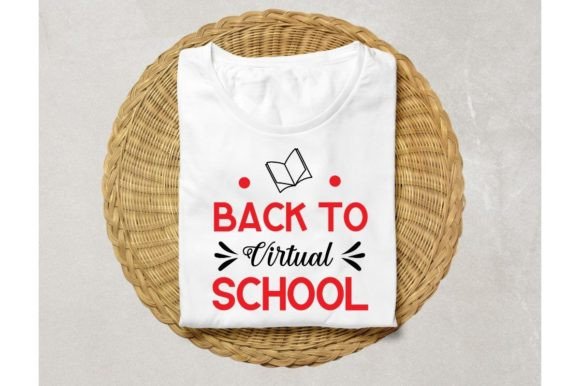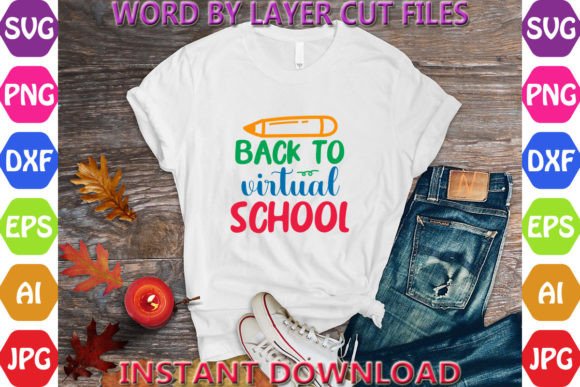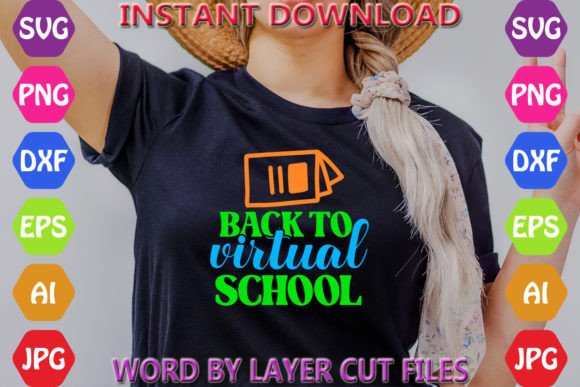
Back to Virtual School File
Whether you're launching a back-to-school campaign, designing classroom resources for remote learning, or creating branded merchandise for educators, the Back to Virtual School File is built for real-world flexibility—not just decoration. It’s not a static image or generic clipart; it’s a precision-crafted digital design package engineered for creators who need control, clarity, and compatibility across tools and platforms.
This file delivers immediate utility: one cohesive concept, multiple editable formats, zero physical shipping, and full creative autonomy. You’re not buying a picture—you’re acquiring a production-ready asset that adapts to your workflow, whether you're cutting vinyl with a Cricut, prepping print layouts in Adobe Illustrator, building web graphics in Figma (via SVG import), or preparing scalable assets for an educator newsletter.
What Makes This Design Practical—Not Just Pretty
The strength of the Back to Virtual School File lies in its layered construction and intentional format diversity. The “Word By Layer” SVG ensures each word—or even individual letters—can be isolated, recolored, resized, or repositioned without distortion. That means you can:
- Turn “Virtual” into a bold header while using “School” as a subtle watermark on digital handouts;
- Extract “Back to” for social media banners and pair it with your own custom icons or photos;
- Use the transparent PNG at 300 DPI for crisp email headers, blog feature images, or printable PDF worksheets.
No guesswork, no pixelation, no licensing limits. Every file type serves a distinct purpose—and every purpose reflects how working creators actually build things today.
Creative Applications Across Roles
Educators & Instructional Designers: Embed the EPS or AI file directly into lesson slide decks (PowerPoint, Google Slides) without quality loss. Use the DXF version if you’re laser-cutting classroom signage for hybrid learning stations—or importing into CAD-based education tech tools. The layered SVG makes it easy to animate transitions in Canva or Loom videos (“Back…” fades in, then “…to Virtual School” follows).
Small Business Owners & Print-on-Demand Sellers: Scale the design seamlessly across mugs, tote bags, or laptop stickers. Because the AI and EPS files are fully editable vector formats, you can adjust stroke weights, add halftone textures, or integrate your logo without compromising sharpness—even at 24-inch banner size. Pair the JPEG with mockups for Etsy listings; use the transparent PNG for Instagram story highlights labeled “Remote Learning Resources.”
Bloggers & Content Creators: Repurpose the layers to build themed content series: isolate “Virtual” for a post on digital wellness, “School” for a roundup of LMS tips, and “Back to” for a September planning guide. The consistent typography and spacing maintain visual cohesion across posts—no need to hunt for matching fonts or redraw alignment guides.
How to Keep Your Output Clear and Audience-Focused
Clarity starts with intention—not just aesthetics. Before editing, ask: Who sees this first? Where does it live? What action should it support?
If it’s for parents scanning a school newsletter on mobile, prioritize legibility over decorative flourishes. Reduce layer complexity—hide or delete non-essential elements from the SVG so only “Back to School” remains, then increase font weight and contrast. If it’s for a teacher-facing workshop slide, use the AI file to add subtle educational icons (a headset, laptop, or book stack) aligned to the baseline grid—keeping visual hierarchy intact.
Consistency matters most when scaling ideas. Save your edited versions with clear naming: back-to-virtual-school_cricut-cut.svg, back-to-virtual-school_email-header.png. That habit saves hours when updating seasonal campaigns year after year.
Realistic Workflow Tips—No Assumptions, Just Utility
You don’t need Adobe Creative Cloud to use this file—but if you do, leverage what each format does best:
- AI File: For precise path editing, global color swaps (via Recolor Artwork), or exporting custom-sized SVGs optimized for web performance.
- SVG File: Drag-and-drop into Cricut Design Space or Silhouette Studio. Use “Ungroup” and “Attach” functions to control cut order—especially helpful when layering text over shapes.
- DXF File: Import directly into LightBurn or Fusion 360 for CNC routing or engraving projects—ideal for durable classroom name tags or desk labels.
- EPS File: Embed in InDesign layouts without rasterization. Perfect for multi-page resource guides where vector fidelity must hold across print and PDF export.
Don’t overlook the JPEG—it’s not a fallback. It’s your fast asset for platforms that don’t accept SVG or transparent PNGs (like some LMS interfaces or older email clients). Use it where speed and broad compatibility trump editability.
Why Format Diversity Is a Strategic Advantage
One-size-fits-all design files rarely fit anyone well. This package anticipates divergence—not duplication. You’ll never need to convert a low-res JPEG to SVG and lose edges. You won’t waste time redrawing vectors from a flattened PNG. And you won’t hit a wall because your cutting machine only reads DXF or your printer requires EPS.
That variety also supports iteration. Try three versions of the same phrase: one minimalist (just “Virtual School” in clean sans-serif), one illustrated (add your own doodle-style icons beside each word), and one typographic (stack “Back,” “to,” and “Virtual School” vertically for vertical Instagram carousels). All start from the same source—no reinvention required.
The Back to Virtual School File doesn’t tell you what to make. It gives you the grounded, reliable foundation to make it—your way, on your terms, for your audience.